It is equally important to monitor hardware components of the servers specially cpu, RAM , fans etc while monitoring it’s application component.
Fortunately hp server provides more flexibility to monitor it’s hardware component compare to other vendors. This article guides you how to monitor
HP Proliant server hardware component using Nagios plugin called check_hpasm with SNMP. Same can be accomplished using nrpe plugin, but it doesn’t demonstrate here.
Configuration is divided into 2 sections. First section guides how to configure remote monitoring server which is going to be monitored by Nagios.
Last section is for Nagios Server. Let’s look at how to setup Nagios check_hpasm for hp servers .
Remote Server :-
IP : 192.168.10.50
OS : Centos 7.1
1) Install snmp
yum install net-snmp net-snmp-utils
2) Configure HP Repo
Please refer this for more details :- http://downloads.linux.hpe.com/SDR/project/mcp/
—-This is for Centos 7.1, modify below repo according to your server. Refer above URL.
vim /etc/yum.repos.d/mcp.repo
[mcp]
name=Management Component Pack
baseurl=http://downloads.linux.hpe.com/SDR/project/mcp/repo/mcp/CentOS/7.0/x86_64/10.0
enabled=1
gpgcheck=0
gpgkey=file:///etc/pki/rpm-gpg/GPG-KEY-mcp
3) Install HP health and HP snmp agent
yum install hp-health
yum install hp-snmp-agents
4) configure HP snmp agent
type following on linux terminal with root privileges.
/sbin/hpsnmpconfig
here use following read only community string :- ROComm34ss
This community string will use Nagios server when it is retrieving snmp data from remote server which we do configuration at the moment.
5) Start snmp services
chkconfig hp-snmp-agents on
service hp-snmp-agents start
service snmpd start
Monitoring Server :-
This is the Nagios monitoring server.
1) Install Nagios
please refer this article, if don’t install nagios yet.
https://assets.nagios.com/downloads/nagioscore/docs/nagioscore/4/en/quickstart.html
2) Install check_hpasm
https://labs.consol.de/nagios/check_hpasm/index.html
Download latest version or
https://labs.consol.de/assets/downloads/nagios/check_hpasm-4.7.1.1.tar.gz
3) Compile and install check_hpasm
Assuming nagios plugin directory is /usr/lib64/nagios/plugins.
./configure –prefix=/usr/lib64/nagios/plugins –with-nagios-user=nagios –with-nagios-group=nagios –enable-perfdata
make
make install
4) Confgure remote monitoring server setting
open or create *.cfg file for remote server.
vim /usr/local/nagios/etc/servers/test_svr.cfg
define service{
use generic-service
host_name TEST_SVR
service_description Server Information
check_command check_hpasm
contact_groups sysadmin
normal_check_interval 15; Check the service every x minutes under normal conditions
retry_check_interval 2;5; Re-check the service every x minutes until a hard state can be determined
}
5) Add check_hpasm commands.cfg
vim /usr/local/nagios/etc/objects/commands.cfg
define command {
command_name check_hpasm
#command_line $USER1$/check_hpasm $HOSTADDRESS$ -C $ARG1$
command_line $USER1$/check_hpasm -H 192.168.10.50 -C ‘ROComm34ss’
}
6) Test connection
/usr/local/nagios/libexec/check_hpasm -H 192.168.10.50 -C ‘ROComm34ss’
snmp port should be opened at remote server.
7) Restart Nagios
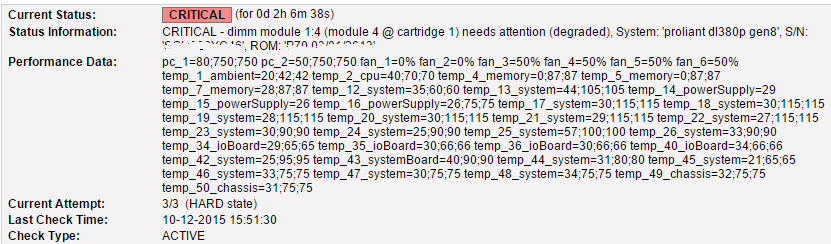
Below is sample output of the Nagios which indicate memory error of the HP server.