Feb 15

Hyper-V file sharing between and host and guest

Hyper-V file sharing between and host and guest is little complicated and it is not easy like on Virtualbox.
Here, this article guides one way of doing it. I have attached many screenshots to make it more clear.
for windows guest you can follow the same steps but last step will be little different.
1) Select exiting folder or create new one to share the file between host and guest Linux OS.

2) Right click on folder and find “Sharing” from the menu tab. Then click “Advance Sharing” –> “permissions”,
select Everyone and grant full permission.

sharing properties


3) Go Hyper-V and add ‘external switch’ from “Virtual Switch manager”
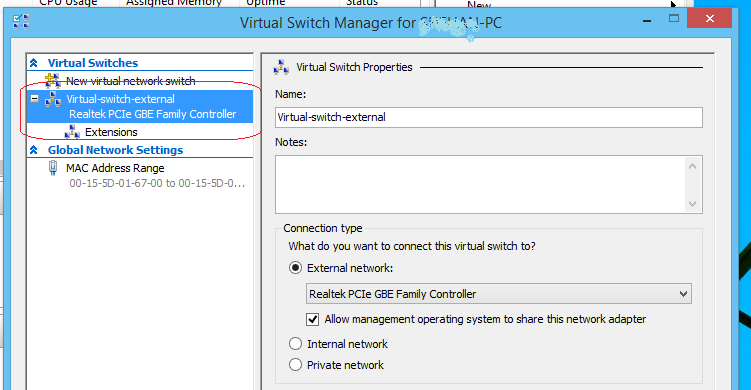
virtual switch external


4) Open a command prompt on host (windows server) and find the it’s ip address by using ‘ipconfig’ command

5) Lauch the linux guest and open “Files” , then under the “Network” section click
“connect to server”
you need to type smb://[ip address of your host]/
ex:- smb://192.168.1.106/
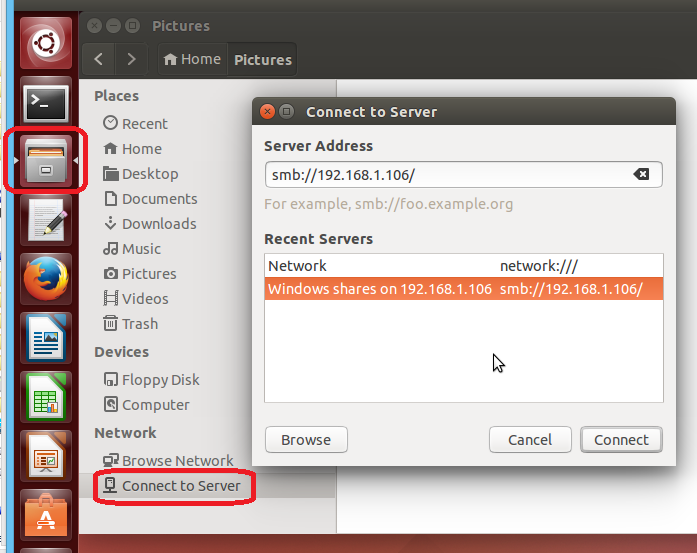
connect to the server


in the wizard you may need to type host machine username/password. once this is done you can successfully exchange file between host and guest .

windows and ubuntu file shared


that’s it. share this article if it is useful to you and don’t hesitate to put comments at all 🙂

Feb 10

Changing Linux screen resolution in Hyper-V virtual machine

There is no way to change screen resolution of Linux machine which is running on Hyper-V virtual machine.
Even if you have installed hyper-v Linux integration software you can’t change the resolution from display settings. Here is alternative method of how to do it quickly. let’s check how to change Linux screen resolution in Hyper-V virtual machine

1) Open the terminal

2) edit the grub file

following example was done at Ubuntu

sudo vim /etc/default/grub

3) Set resolution

Find the line starting with GRUB_CMDLINE_LINUX_DEFAULT (line is highlight on image) and add video=hyperv_fb:[the resolution you need]
ex:- video=hyperv_fb:1200×700
you may need to change the above value several time to achieve better screen size. 1200×700 is the value which is worked on my 1366×768 resolution windows server.

defualt grub file of ubuntu


4) write and quite (wq) from the editor

5) Execute following command


sudo update-grub

and reboot the Linux machine

Nov 08

nginx – loading a different robots.txt file for a different sub domain

This will useful when web site has more than 2 domains. For an example webs site is configured to use one domain as real/actual domain and other domain use for testing purposes/temporary. But if you use more than 1 domain for web site, web crawlers such as Google bot will penalize the site as it contains duplicate content.
Simplest solution is, use Nginx managed robots.txt file for a different sub domain by checking the domain name.

server {
## some code ....
        listen   80;
        root /path/to/webroot/folder;
        index index.html index.htm index.php;
        server_name realdomain.com testdomain.com;
        

location /robots.txt
        {
        if ($host = 'testdomain.com') {         
        return 200 "User-agent: *\n Disallow: /";
        }
        }

## some code ....
}

Older posts «

» Newer posts

Fetch more items