Jun 20

Zeroshell turns an old PC into a router

Recently I was looking Linux based routing platform, and finally found this great pieces of distribution called Zeroshell . It is Linux distribution for servers and embedded systems which aims to provide network services. It ships with nice web-based GUI which make very easy to administrate over web browser.

I had a chance to experience following features, and performance  delighted me very well. All features and documents can be found from here .

  • HTTP Proxy server :-

It is able to block the web pages containing virus. The proxy server works in transparent proxy mode, in which, you don’t need to configure the web browsers of the users to use it, but the http requests will be automatically redirected to the proxy.  Awesome! isn’t it 🙂

  • QoS (Quality of Service) :-

management and traffic shaping to control traffic over a congested network. It is possible to classify the traffic by using the Layer 7 filters that allow the Deep Packet Inspection (DPI) which can be useful to shape VoIP and P2P applications.

  • Routing Facilities :-

Router with static and dynamic routes (RIPv2 with MD5 or plain text authentication and Split Horizon and Poisoned Reverse algorithms)

  • Traffic Filtering :-

Block web sites such as social media sites, according company policies during working hours. Please refer this article for more details.

  • NTP (Network Time Protocol) client and server.


  • Load Balancing and Failover of multiple Internet connection


  • NAT to use private class LAN addresses hidden on the WAN with public addresses


  • Multizone DNS (Domain name system) server


  • UMTS/HSDPA connections by using 3G modems.

I would like write some tutorials about Zeroshell in later if I have free time. meanwhile I strongly encourage you to try this out.

May 04

Customize timestamp format in the squid access log

In squid proxy, access log is really important as it records all networking activities of the users.
The timestamp of the log play a big role, but default time format is not much useful, so most users like me 🙂 used to change it to Local time format to log something similar to below.

04/May/2015:11:28:19 Sri Lanka Standard Time 148 107984 192.168.64.130 TCP_MISS/200 50621 CONNECT www.google.lk:443 - DIRECT/222.165.163.24 -

I hope you are reading this because you are not satisfied with default output as I do. Let’s look at how to change it.

1) According squid.conf document.

Format code structure :-  
#% ["|[|'|#] [-] [[0]width] [{argument}] formatcode

Time related format codes:-
#        tl    Local time. Optional strftime format argument
#            default %d/%b/%Y:%H:%M:%S %z

2) Here I need year/month/date kind of timestamp while removing time zone, So I configured format like below, adjust it as you wish.

3) Restart squid poxy, and check access log again. you will find log’s timestamp similar to below.

04/May/2015:11:28:19 Sri Lanka Standard Time 148 107984 192.168.64.130 TCP_MISS/200 50621 CONNECT www.google.lk:443 -  DIRECT/222.165.163.24 -

That’s it 😀


Related post :- How to configure squid as transparent proxy

Apr 19

Configuring Fine-Grained Password Policies in Active Directory in Windows Server 2012

Those who are novice to the active directory have common question that how to set different password policy for group of users in domain. It is really simple with Active Directory 2012 using fine-grained password policies ,but there are few facts to keep in mind before starting this.

* one domain can have only single password policy and it is managed by “Default Domain Policy”.

* If it is required to apply separate password policy, you should use Fine Grained Password Policy (FGPP) which is going to discuss in this article. It has limits as it can only apply to either USERS or GROUPS, while can not apply to OU (Organizational Units) etc.


Group Policy Management


Let’s look at how to do configure FGPP for Administrator user who needs separate password policy than normal users in windows server 2012 Active Directory.

1)  In “Server Management” window, open “Active Directory Administrative Center” from the Tools menu.


Active Directory Administrative Center


2)  Click on “Tree View” from left top corner. Then Expand your Domain, here my Domain is “Surathilina”.

Further expand “System” and click on “Password Settings Container”. I have already created two policies ,but by default this container should be empty.


Password Setting Container

3) Let’s create a new FGPP (Fine Grained Password Policy) for “Administrator” user.

Expand “Password Settings Container” right hand on the window as below screen shot and create new one (“New” –> “Password Settings”).


Password Settings


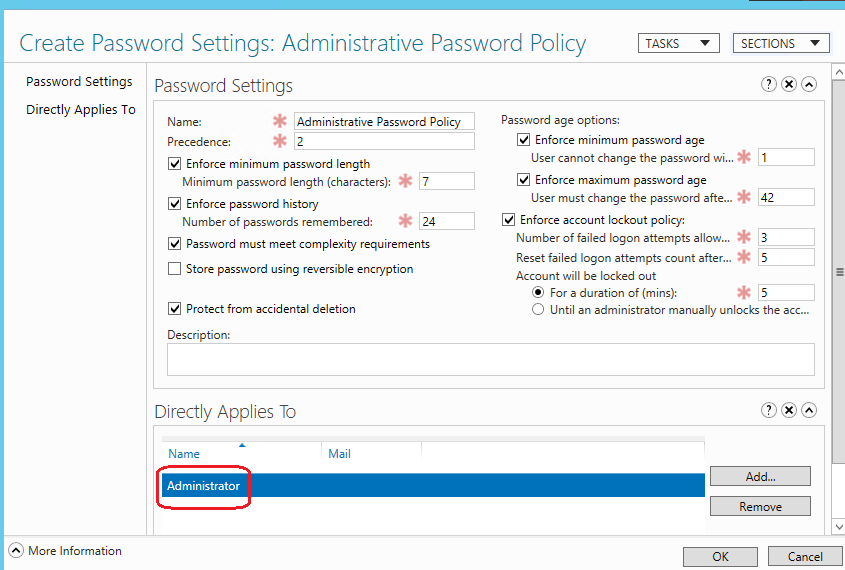
4) Create Password Settings windows fill the values as per required.

Then choose USER or GROUP from the “Directly Applies To”. Here I select Administrator user Which I need to apply separate policy. This policy can be applied to group of users as well.


Create Password Settings


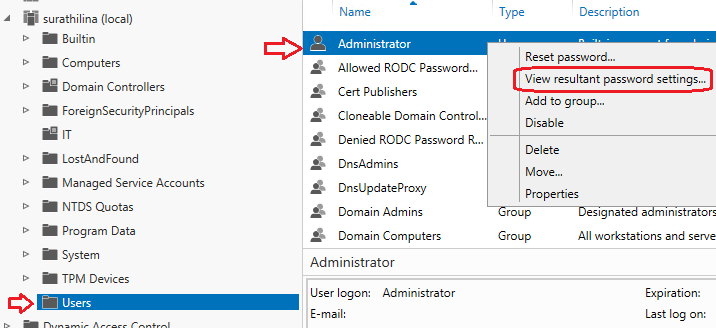
5) We can verify whether user is applied with new password setting. To do that click on “Users” container, right click on

“Administrator” user –> “View resultant password settings…”. It will opened with password settings which is created moment back.
Other users password are applied according “Default Domain Policy” and it can verify following above steps.


View resultant password settings


It is the end of long story of  fine-grained password policies ( FGPP ) in Active Directory 2012 🙂 . I’m looking forwarding your comments


Older posts «

» Newer posts

Fetch more items